How to Set Up Two-Factor Authentication (2FA)

Overview
In this tutorial, we will explore how to set up two-factor authentication (2FA) for an added layer of security.

NOTE: The 2FA settings at the tenant level are exclusively visible for users with the administrator role, who are the only ones authorised to enable or disable the 2FA settings for the site.

Step Tutorial
1. Under 'Administration', select 'Settings' and go to the section named 'Security'. This section contains a 'Two-Factor Authentication' tab with a toggle button for enabling or disabling 2FA, which is toggled off by default.
2. Toggle the button on and click the 'Save' button. A success modal will be displayed.
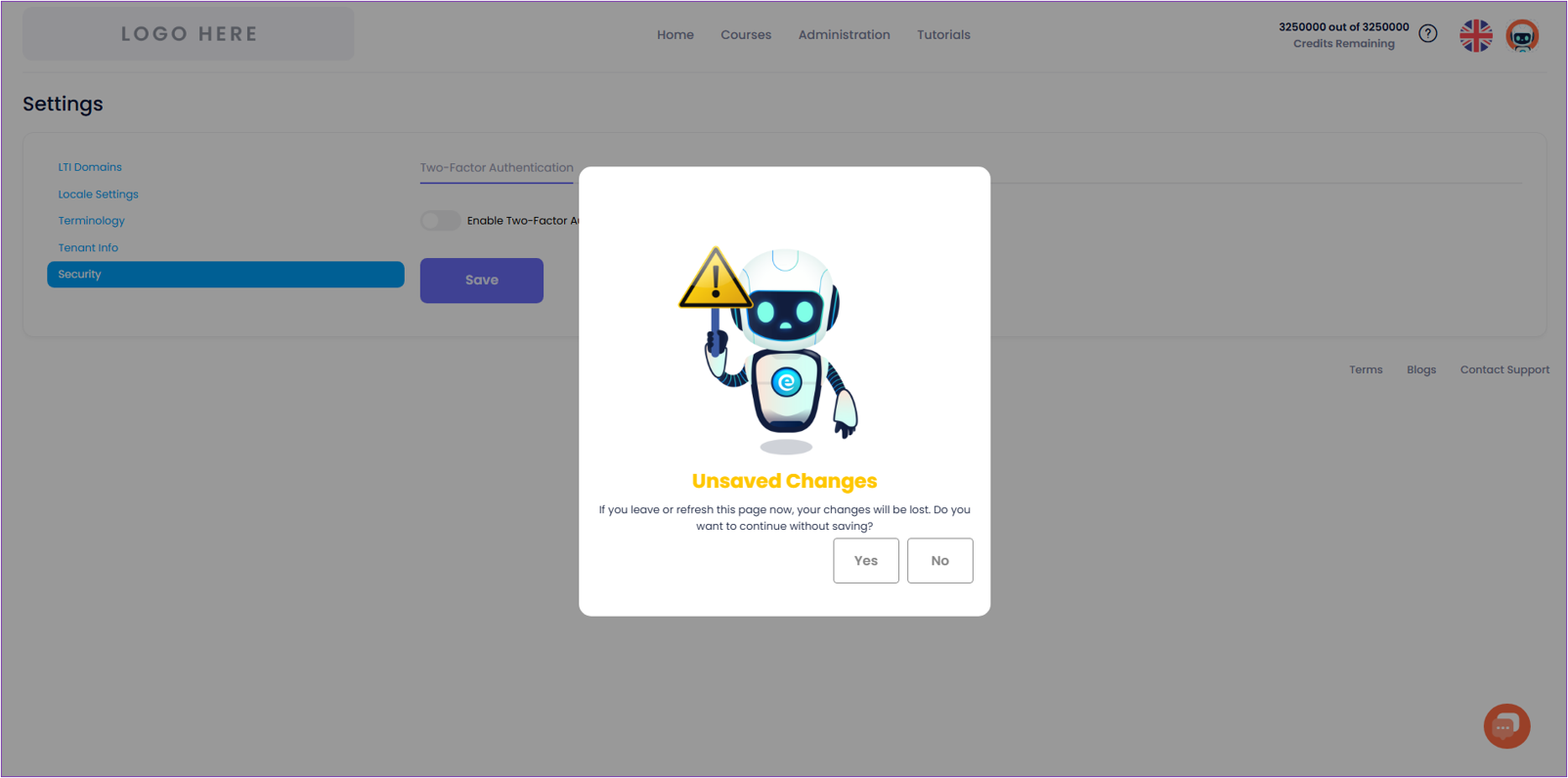
NOTE: When the user enables or disables the 2FA settings and attempts to navigate to another tab without saving, a warning message about unsaved changes will be displayed.
3. Upon signing in with the correct email and password after enabling 2FA recently, you will be redirected to a page where you can set up the 2FA with the following options:
- Authenticator App (Recommended)
- Email Authentication
a. If the user selects 'Authenticator App', a QR code compatible with authenticator apps (e.g. Google Authenticator, Microsoft Authenticator) will be generated for scanning.NOTE: A required field is also provided for entering the 6-digit code from the user's authenticator app, together with a 'Submit' button. Once the user attempts to submit the form without providing an input, the field will be highlighted in red, and an error message will be displayed below.
i. After setting up the 2FA, wait for a 6-digit code that will be provided by the authenticator app.ii. Enter the correct 6-digit code and click the 'Submit' button. A success modal will be displayed with the following message:
iii. Click the 'OK' button, and you will be automatically logged in to the AICC site.NOTE:
- For the succeeding log-in attempts where 2FA is enabled and already set up, the user will be redirected to a page to enter the 6-digit code from the authenticator app.
- Upon entering the correct code and clicking 'Submit', the user will be automatically logged in to the AICC website.
- A link labelled 'Lost your authentication code?' is included below the 'Submit' button. This will be useful for users who have lost their authenticator. Clicking this link will send an email to the user to reset their authenticator.
- Clicking the link provided in the email will allow the user to reset their authenticator and set it up again.
- The email verification for lost authenticator will be valid for 10 minutes. Using this email after its validity will redirect the user to a page displaying this message:
b. If the user selects 'Email Authenticator', a confirmation email will be sent to the user's email address.
i. Click the 'Confirm Email' link to be redirected to the log-in page.
ii. Enter the correct email address and password. A 2FA email containing the 6-digit one-time password (OTP) will be sent to your email address, and you will be redirected to a page to enter the OTP.NOTE: Below the 'Submit' button, the following options will be displayed for the user:
- Resend authentication code?
iii. Enter the correct OTP and click 'Submit' to be redirected to AICC home page.NOTE: If the user clicks the 'Try another way of authentication.' option, the user will be redirected to the 'Two-Factor Authentication' selection page.
Related Articles
How to Edit a Theme
Overview AI Course Creator offers a wide variety of themes, you can utilise these pre-loaded themes to enhance your course's appearance or modify them to best suit your preference. In this tutorial, we will discuss how to edit a theme. Step Tutorial ...How to Use the Tool Blocks
Overview In this guide, we'll walk you through the various tools available to enhance your content creation. Whether you're looking to work with text, images, interactive activities, or media, we've got you covered. You'll also learn how to ...How to Edit the Course Blocks
Overview Whether you've used AI to generate your course content or created it manually, you have the flexibility to add, rearrange, edit, duplicate or delete the course blocks to suit your needs. This customisation allows you to refine the structure ...How to Create a Course
Overview The eSkilled AI Course Creator is a powerful tool designed for creating courses. It offers a compelling alternative to traditional course creation methods by allowing users to generate a complete course instantly with minimal input. In this ...How to Manage Subscription and Inclusions
Overview In this tutorial, we'll be discussing the steps on how you can manage your subscription and inclusions. Step tutorial 1. Go to your AICC site. From the home page, click on the profile image in the top right corner, then choose 'My ...